| Introduction |
In this lecture we will learn little new Java, but we will explore the
various classes that make up a pattern for writing applications controlled
by Graphic User Interfaces (GUIs).
The pattern is named Model-View-Controller (MVC), and it consists of writing
an application as three main classes, with each implementing one aspect of
the GUI.
Objects constructed from these three classes coordinate their behavior to
accomplish the goal of the application.
In this lecture we will focus on writing Model classes and discuss two simple GUI applications: the first allows the user to experiment with combining various strengths of the colors Red, Green, and Blue, when designing backgrounds for HTML pages; the second uses an array to simulate any number of balls bouncing in a bounded box. You can download the Color Calculator and BouncingBalls GUI applications, unzip and run them, and examine any or all of their classes; again, we will focus on ther Model classes in these applications. In upcoming programming assignments, I will supply the View and Controller classes, and you will write a Model class that interacts with them. Later in the semester, we will return to these programs to examine their View and Controller classes in detail. In the last assignment for the semester, I will supply the Model class and you will write the View and Controller classes for a program. |
| The MVC Pattern |
Programming patterns are good ideas (something bigger than code) that can be
used over and over again in programming projects.
The MVC pattern is a good way to think about writing all GUI applications:
it separates the application into three main classes that interact with
each other to coordinate the entire application.
Finally, a tiny main method in the Application class coordinates this pattern by creating objects from each of these three classes, and then calling some special methods in each object to allow it to access the other objects it needs to call methods on. The main method then starts the GUI and disappears: the GUI stays around even after the main method has terminated. The main body is typically under a dozen lines of code, and every main method controlling an application written via the MVC pattern looks similar to every other one. |
| The Color Calculator |
The Color Calculator application is implemented using the
Model-View-Controller pattern.
It allows us to see a color (and its hexadecimal value) as we change its red,
green, and blue components in the range [0..255].
We can change each component by directly entering a legal value into its
text field (each is labeled above by the name of a color), or by pressing a
button to increment or decrement its current value.
It shows a swatch of the resulting color, along with its hex value (which we
can use directly in HTML to specify a background or foreground color).
For a swatch to be shown, each color component must store/display a legal
value in the range [0..255].
The view is split: on the left are some labels (Red, Green, and Blue), some text fields that display the current value for the intensity of each color (they are editable: the user can also type a value directly into them), and increment/decrement buttons (labeled +10 and -10). On the right is a color swatch (used when all the intensity values for the colors display a legal value), and a hex value of the color currently being shown (or the word unknown, if there is no swatch being displayed. Here is a screen shot of this application running. You should download and run the Color Calculator now, experimenting with it by entering text and pressing its buttons.
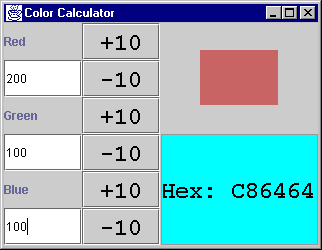
The controller has three editable text fields (one for each color) and six buttons (two to the right of each color: one to increment the color's value by 10 and one to decrement its value by 10). The model stores (in instance variables) the intensity of each of the colors as references to ModularCounter values. If an instance variable stores null, it denotes that the intensity of that color has not yet been entered correctly. It also stores a reference to the view, so it can call its update method (see the changeColorViaTextField and changeColorViaButton methods) whenever the user changes the state of the model by entering a new intensity or incrementing/decrementing the intensity by pressing one of the buttons. When a textfield conrol is activated (either because the user presses "enter" after entering text there, or because the user moves to another control after entering text there) it calls the changeColorViaTextField method in the Model class. This method is passed, as Strings, both the color that was activated and the information that was entered in the box (it is supposed to be an intensity in the range [0..255]): if the intensity String can be parsed as an int in this range, the instance variables storing that color's intensity is reset to that value; otherwise it is reset to null. In either case, the model tells the view to update itself afterwards. When a button control is activated (because it is pressed), it calls the changeColorViaButton method in the Model class. This method is passed, as a String, the color that was activated, and as an int, the change (either +10 or -10, depending on which button was pressed): if the instance variable storing the intensity of this color is non-null, it is incremented (or decremented) appropriately; otherwise it remains null. In either case, the model tells the view to update itself afterwards. Whenever a button is pressed, the cursor is moved to a new textfield, or a "enter" is pressed in a textfield, the controller displays a trace message inside the console window; the console is NOT used for input/output in GUIs, but is often used to help debug GUIs. The message includes a description of what happens and the parameters to be sent to the model method that is subsequently called. Whenever the view's update method is called, it calls the getRed, getGreen, and getBlue accessor/query methods in the model: it then displays these values in each textbox. If all are legal values, it also displays a swatch of color and calls the getHex accessor/query method in the model: it then displays this value beneath the swatch. |
| Package Access |
Before we explore the actual definitions in the Model class in the
colorCalculator package, we will learn another access modifier
(which is frequently used there).
Recall that the EBNF for access modifiers (so far, we will add more later)
is
access-modifiers <= [public|private] [static] [final]We have always specified either public or private, but in fact these alternatives appear in an option, so we can discard them. If we do discard the option, writing neither public nor private, we say that the resulting access is package-friendly or just package. When access is package-friendly, Java considers it to be public to all classes defined in its package, but private to all classes defined in other packages. So, it is a bit more restrictive than making the memember public (it isn't public in other classes), but less restrictive than making it private (it isn't private in classes defined in the same package). The application being described contains the classes Model, View and Controller, all in the colorCalculator package. Some members are declared private (e.g., all instance variables and helper methods), others are declared public (e.g., all constructors, which new uses in the Application class, which is in the anonymous package), and some are package-friendly (e.g., the Model methods called by the controller and the update method in the View class, called in the Model class. Recall that when a class is defined in a package, it does not need to import other classes from that same package: the Java compiler automatically imports them. It is exactly these implicitly-imported classes that can access package-friendly members. |
| Color Calculator Model Definitions |
Now we will examine in detail the Model class defined in the
colorCalculator package.
It defines the following instance variables.
private View view; private ModularCounter red,green,blue;The color instance variables initially store null, meaning they have no values yet (they are first assigned values via the changeColorViaTextField method, described below). The view instance variable is reinitialized when the main method in the Application class constructs an object from this class and calls addView with it as an argument. public void addView (View v)
{view = v;}
Recall that this method must be public, because the Application
class calling it is defined in the anonymous package, not
colorCalculator.
The constructor in the Model class is simply
The four main accessor/query methods are
Next, we will examine the two main mutators/commands, called from the
controller.
void changeColorViaButton(String color, int amount)
{
if (color.equals("Red") && red != null)
red.update(amount);
else if (color.equals("Green") && green != null)
green.update(amount);
else if (color.equals("Blue") && blue != null)
blue.update(amount);
else
return; //Not a good color!
System.out.println("State: " + this +"\n");
if (view != null) //In case Model's main (not Application's) is running
view.update();
}
This method is a bit shorter, less complex, and easier to understand.
public String toString()
{return "Model[red=" + red + ", green=" + green + ", blue=" + blue +"]";}
Note that it is automatically called in
System.out.println("State: " + this +"\n");, as if we had written
System.out.println("State: " + this.toString() +"\n"); or just
System.out.println("State: " + toString() +"\n");
|
| Model Debugging |
In GUI applications, we often use the console window to display information
useful for debugging purposes.
In the Controller class, every user action displays itself in the
console window.
For example, pressing the Red +10 button prints the message
Debug-Controller: Color button +10/-10 button pressed (Red,10)
in the console window.
In this way we can determine whether we are activating the controls
correctly.
In the Model class, every time one of its methods calls view.update(); it first prints the state of the model (the three important instance variables) in the console window. For example, if the first thing we do is to enter 10 in the Red textfield, the model prints State: Model[red=10(mod 256), green=null, blue=null] in the console window. In this way, we can display a textual representation of the state of the Model class in a scrollable window, so we can examine the entire history of our interaction with the GUI and what changes it made for each one. There is another interesting way to test a Model class, even without having access to its View and Controller classes (which may not even be written when the Model is finished: we'd certainly like to test each class independently from the others, as soon as it is written). We can write a driver for it, similar to the other drivers that test classes. But, in this case we will actually write the driver as a main method in the class itself; we could also have done so in the other classes that we examined, but I delayed introducing this material until we were a bit more sophisticated about writing classes.
Recall that every class is allowed to define a special main method.
In this class it appears as
To direct Java to execute this main method, instead of the one in
the Application class, change the Java Target so that
the Main Class text field contains colorCalculator.Model.
This was discussed in more detail in the general lecture on
main methods.
Recall that because Application is in the anonymous package, it
is not prefaced here by any package name; but since Model is
in the colorCalculator package, it must be prefaced by this name.
Here is a short session with this driver
|
| Bouncing Balls |
The Bouncing Balls application is also implemented using the
Model-View-Controller pattern.
In addition, its Model class uses arrays (and length doubling).
We can create any number of balls by clicking on its window's screen
(the array stores them all).
A ball appears at each clicked location, initialized by a random color (which
does not change) and a random velocity.
When balls reach the boundaries of the window, they bounce back into the
interior.
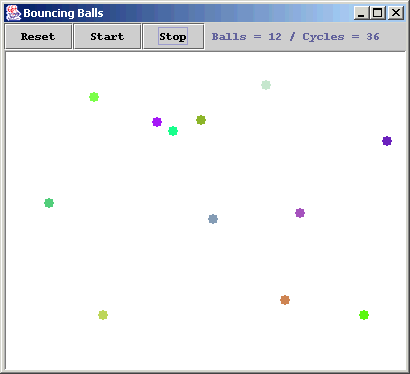
There is a panel of buttons at the top of the application: there are buttons to start and stop the simulation, and there is a button to reset it: stop it and remove all the balls (clearing the screen). Here is a screen shot of this application running. You should download and run Bouncing Balls now, experimenting with it by clicking in the window and pressing its buttons.
The application runs mainly by defining a timer (a kind of control) that automatically fires every 100 milliseconds. When it fires, it first calls the updateAll method in the Model class, which calls the update method on every Ball object in the array that Model stores; each Ball object computes its new x,y coordinate (based on its current x,y coordinate and it horizontal and vertical velocities) including whether it bounces off a wall (if it does, it changes its horizontal or vertical velocity too -to move in the opposite direction). Next the timer calls the displayAll method in the Model class, which clears the window and calls the display method on every Ball object in the array that Model stores; each Ball object displays itself in the window at its current x,y coordinate. The update and display actions happen so quickly that it looks like the balls are moving smoothly. Methods in the Model class are also called whenever the user presses the Start, Stop, or Reset button. The first two buttons toggle an instance variable that determines if the simulation is running: actually, updateAll does nothing if the simulation is stopped. If Reset is pressed, all current Ball objects are removed from the array.
|
| Bouncing Balls Model Definitions |
Now we will examine in detail the Model class defined in the
bouncingBalls package.
It defines the following instance variables.
private View view;
private Ball[] balls; //Refer to each ball
private int used; //How much of the balls array is used
private boolean running; //Whether updateAll should update balls
private int cycleCount; //Times updateAll called since reset
}
Here used is similar to top/rear when storing the
stack/queue collections: it stores the number of indexed
members that are stored in balls (in locations 0 to
used-1).
The Ball class, used to declare the array, is very small.
It defines just one constructor and three methods
Ball (int x, int y, int vx, int vy){...}
void update (Dimension box) {...}
void display (Graphics g) {...}
public String toSTring() {...}
which we will be used in the methods defined in the Model class.
Notice that these methods are all defined to be package-friendly (except
toString, which always must be declared public).
Dimension and Graphics are two classes declared in the standard
Java library.
The view instance variable is reinitialized when the main
method in the Application class constructs an object from this
class and calls addView with it as an argument.
The constructor in the Model class is
The two accessor/query methods are also very simple
The first interesting method is called by the controller whenever the user
clicks somewhere in the window.
It receives as arguments the x,y coordinate of the click in the window and a
click count (e.g., 2 means a double click) although this last parameter is
ignored here.
We have now seen every method called by a user interaction with the controller:
reset, start, stop, and mouseClick.
Now we focus on the two methods automatically called every 100 milliseconds
by the controller: updateAll and displayAll
So, this method mostly acts as a dispatcher: when the controller says that it is time for the Model to change its state, it iterates over all the Ball objects that it stores and instructs each to update its state. In this way we have distributed complexity: the Model manages a collection of Ball objects; when we do something to the Model, it just does it to all the Balls.
Likewise for the displayAll method.
Note that there are no calls to view.update() in this class. That is because when the timer fires, it automatically calls this method, which then calls displayAll. Technically then, when a new Ball object is added to the simulation, it can take up to 100 milliseconds before it appears in the window.
Finally, the toString method follows the standard form (with a
for loop looking much the same as the toString methods in
collection classes).
|
Debug-Controller: Mouse clicked (1) at (76,84)
Debug-Controller: Mouse clicked (1) at (251,193)
Debug-Controller: Start button pressed
State: Model[used=2,running=true,cycleCount=1,
balls[0]=Ball[x=79,y=91,vx=3,vy=7,color=java.awt.Color[r=39,g=37,b=151]],
balls[1]=Ball[x=257,y=203,vx=6,vy=10,color=java.awt.Color[r=102,g=10,b=174]]
]
State: Model[used=2,running=true,cycleCount=2,
balls[0]=Ball[x=82,y=98,vx=3,vy=7,color=java.awt.Color[r=39,g=37,b=151]],
balls[1]=Ball[x=263,y=213,vx=6,vy=10,color=java.awt.Color[r=102,g=10,b=174]]
]
State: Model[used=2,running=true,cycleCount=3,
balls[0]=Ball[x=85,y=105,vx=3,vy=7,color=java.awt.Color[r=39,g=37,b=151]],
balls[1]=Ball[x=269,y=223,vx=6,vy=10,color=java.awt.Color[r=102,g=10,b=174]]
]
State: Model[used=2,running=true,cycleCount=4,
balls[0]=Ball[x=88,y=112,vx=3,vy=7,color=java.awt.Color[r=39,g=37,b=151]],
balls[1]=Ball[x=275,y=233,vx=6,vy=10,color=java.awt.Color[r=102,g=10,b=174]]
]
| Writing Models |
How does one generally think about writing a model class (given a matching
controller and view class)?
As the model, think of yourself sitting at a desk with various telephones:
one for each method that the controller or viewer might call you on.
You also have various note-cards on your desk; on which each is written the
value of one of your instance variables.
The model's job is to take calls on the phones and update information
appropriately on the cards.
In the colorCalculator model, you will have a telephone labelled changeColorViaButton (called by the controller when the user presses an increment/decrement button) and a telephone labelled changeColorViaTextField (called by the controller when the user enters text into one of the color fields). When called on the changeColorViaButton phone, you are told the color and the amount of the increment/decrement (its parameters); when called on the changeColorViaTextField phone, you are told the color and the amount (this time the amount is a String that may or may not contain a legal integer value: the model has to figure that out). In this model, we need three note cards: one each for the amount of red, green, and blue in the current color: by using ModularCounters, these values are always in the range [0..255], and we use null to mean that the amount of this color has not yet been set. Each method call (potentially) changes one of these cards. There are also phones called by the view, asking for information. The getRed, getGreen, getBlue methods are all accessors/queries; when called on one of these phones, we tell the caller some int value representing the intensity of that color. There is also a getHex phone; when called on it, we must compute and return a String that stores one integer, written in base 16, that represents the red, green, and blue components. This value does not need to be stored in its own instance variable: it is just computed, as necessary, from the red, green, and blue instance variables. So, model classes don't really initiate their own actions. They respond to requests: either requests that originate in the controller to change state, or requiests that originate in the view to examine the current state. Of course, the model does notify the view when its state is changed, causing it to call back methods in the model to examine the new state that it must redisplay. |
| Problem Set |
To ensure that you understand all the material in this lecture, please solve
the the announced problems after you read the lecture.
If you get stumped on any problem, go back and read the relevant part of the lecture. If you still have questions, please get help from the Instructor, a CA, a Tutor, or any other student.
|